

For decades, signing in has meant typing a password — something that can be guessed, reused, leaked or typed into a fake website. Passkeys are the industry's answer to that problem, and they are now supported by the major platforms and many popular services. If you've seen a "Create a passkey" prompt and skipped it, this is what you were offered.
What a passkey is
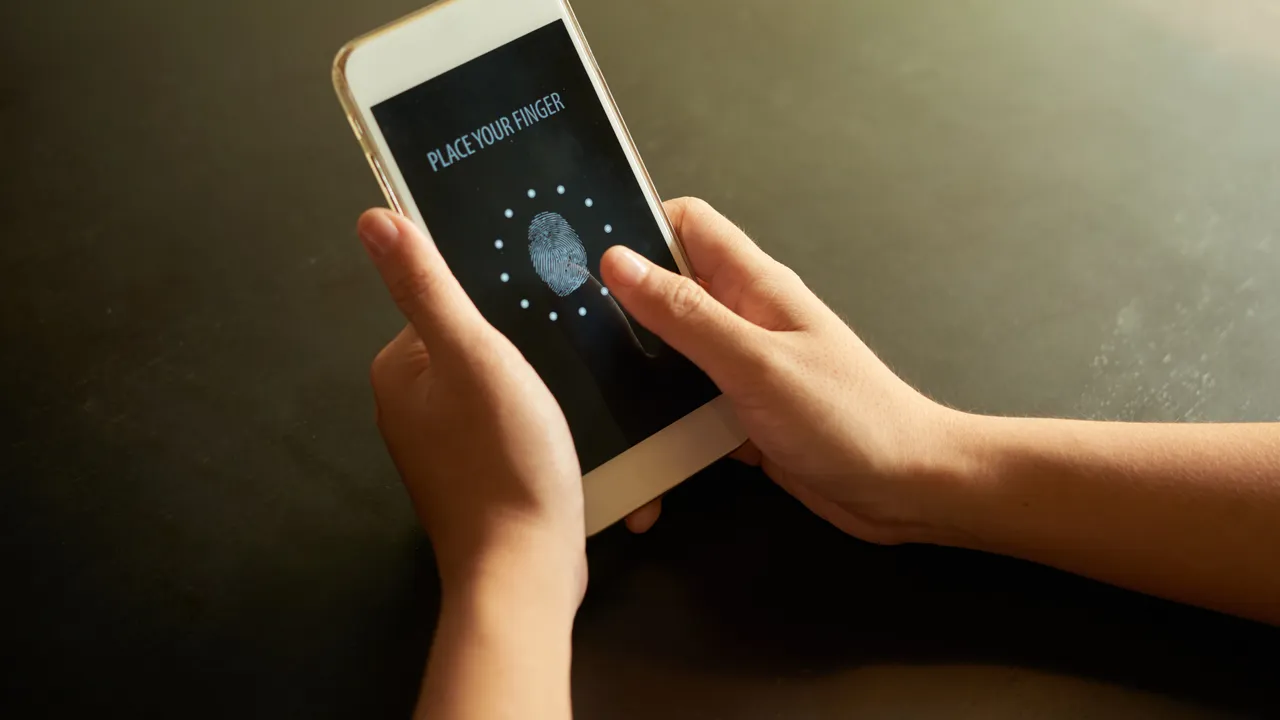
A passkey is a sign-in credential stored on your device or in your password manager. Instead of typing a secret, you confirm it's you the same way you unlock your phone: with a fingerprint, a face scan or your device PIN.
Behind the scenes, a passkey is a pair of cryptographic keys:
- A public key is stored by the website. It isn't secret and is useless on its own.
- A private key stays on your device (or in your encrypted password manager) and never leaves it.
When you sign in, the website sends a challenge, your device signs it with the private key after you unlock it, and the website checks the signature with the public key. No secret is ever typed or sent.
Why passkeys are safer than passwords
They can't be phished. A passkey is bound to the real website's address. If a scam page imitates your bank, your device simply has no passkey for that fake address, so there is nothing to steal.
There's nothing to leak. If a website's database is breached, attackers only get public keys, which can't be used to sign in.
No reuse, no weak choices. Every passkey is unique and generated by your device. You can't accidentally reuse it across sites or pick something easy to guess.
They're quicker. One fingerprint or glance replaces typing a password and waiting for a code.
Where your passkeys live
Passkeys are usually saved in one of these places:
- Your phone or computer's built-in password manager, which syncs them across your devices signed in to the same account.
- A third-party password manager that supports passkeys, which can be handy if you use devices from different makers.
- A hardware security key, for people who want a physical key they carry.
Because synced passkeys are backed up in your account, losing one device doesn't mean losing access — as long as you can still sign in to that account on a new device.
How to create your first passkey
- Start with an account that supports passkeys — many large email, shopping and social services now do.
- Go to the account's Security settings and look for Passkeys or Sign in with a passkey.
- Choose Create a passkey. Your device will ask for your fingerprint, face or PIN.
- Next time you sign in, choose the passkey option and confirm with the same unlock method.
To sign in on a computer that doesn't have your passkey, most services let you scan a QR code with your phone and approve the login there.
Common questions
Is my fingerprint sent to the website? No. Your fingerprint or face only unlocks the passkey on your own device. The website never receives biometric data.
Do I still need a password? For now, many services keep a password as a backup. As support grows, some let you remove the password entirely.
What if I lose my phone? If your passkeys sync through your account or password manager, you can restore them on a new device after signing in. Keep your account recovery options — backup codes, a recovery email — up to date.
The bottom line
Passkeys remove the weakest part of online security: the password itself. Next time a service offers to create one, say yes — starting with your email and your most important accounts.

Comments & ratings
No comments yet. Be the first to share your view.