

Most people only think about backups after something goes wrong: a phone falls into the sea, a laptop won't start, or a cloud account gets locked. The good news is that a reliable backup plan is simple, inexpensive and takes less than an hour to set up.
The most widely used approach is called the 3-2-1 rule.
What 3-2-1 means
- 3 copies of your data — the original plus two backups.
- 2 different types of storage — for example, your laptop's drive and an external drive, or your phone and a cloud service.
- 1 copy off-site — somewhere other than your home or office, so a fire, flood or burglary can't take everything at once.
The idea is that no single accident should be able to destroy all your copies.
Why "it's in the cloud" isn't a backup on its own
Cloud sync services keep the same files on all your devices. That is convenient, but it also means that if you delete a folder by mistake — or ransomware encrypts it — the change can sync everywhere.
A backup is different: it's a separate copy, ideally with older versions you can go back to. Many cloud services do keep deleted files or version history for a period of time, so check your service's settings and know how long that period is.
A practical 3-2-1 setup for most homes
Copy 1: your device. Your phone, laptop or desktop with your working files.
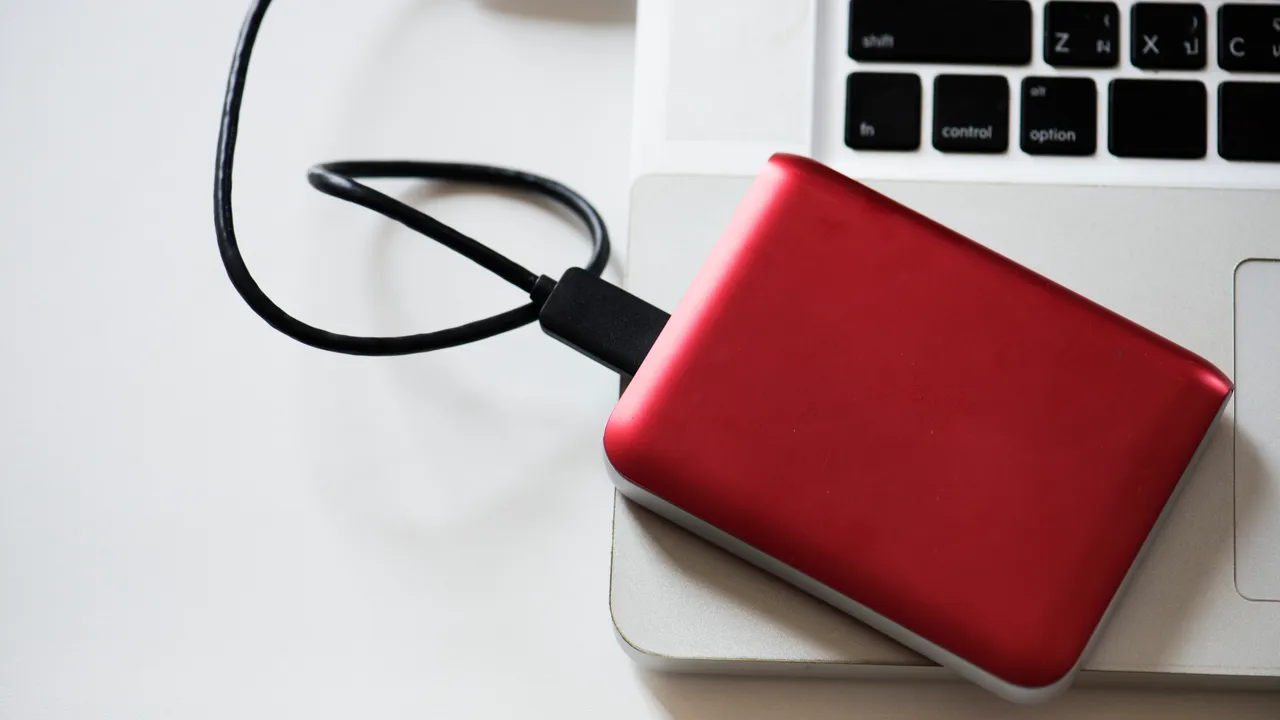
Copy 2: an external drive at home. Buy an external drive at least twice the size of the data you need to protect. Use your computer's built-in backup tool — Time Machine on a Mac, or File History or a backup app on Windows — and let it run automatically while the drive is connected.
Copy 3: off-site in the cloud. Use a cloud backup or storage service for your most important folders and your phone's photos. This is your off-site copy.
What to back up first
You don't need to protect everything equally. Prioritise what you can't replace:
- Photos and videos — especially family memories.
- Documents — contracts, certificates, scans of IDs, tax and business records.
- Work files — client projects, invoices, source files.
- Passwords and recovery codes — usually inside a password manager, which should have its own export or emergency-access option.
Apps and the operating system can always be reinstalled, so they matter less.
Test your backup
A backup you've never restored is only a hope. Once a few months:
- Open the backup and restore one or two random files to a different folder.
- Check that your photos open and your documents aren't empty.
- Make sure the automatic backup actually ran recently.
Common mistakes to avoid
- Keeping the external drive plugged in all the time. If ransomware hits your computer, it can reach a permanently connected drive too. Connect it for backups, then unplug it.
- One giant folder with no structure. Name folders by year and topic so you can find things when you need them.
- Forgetting your phone. Turn on automatic photo backup and check it's working on mobile data or Wi-Fi as you prefer.
The bottom line
Three copies, two types of storage, one off-site. Set it up once, let it run automatically, and test a restore every few months. When something does go wrong, it becomes an inconvenience instead of a disaster.



Comments & ratings
No comments yet. Be the first to share your view.