

Before spending money on a new computer, it's worth finding out why your current one feels slow. Very often the cause is something you can fix in an hour: too many programs starting at once, a nearly full drive, or a browser carrying dozens of heavy tabs.
Work through these steps in order — the early ones are free and the most likely to help.
1. Restart properly
It sounds too simple, but laptops that are only ever put to sleep can run for weeks without a full restart. Memory fills up with leftovers from apps you closed long ago, and some updates never finish installing. Restart, then see how it feels.
2. See what's actually using your computer
- Windows: press
Ctrl + Shift + Escto open Task Manager and sort by CPU, Memory and Disk. - Mac: open Activity Monitor from Applications → Utilities.
If one program is constantly near the top, you've found your culprit. Update it, reinstall it or find an alternative.
3. Stop programs from launching at startup
Many apps quietly add themselves to startup: chat apps, updaters, cloud storage, game launchers.
- Windows: Task Manager → Startup apps, then disable what you don't need immediately after switching on.
- Mac: System Settings → General → Login Items.
You can still open these apps whenever you want — they just won't all compete for resources the moment you log in.
4. Free up storage space
When a drive is almost full, the system has little room for temporary files and updates, and everything slows down. Aim to keep at least 15–20% of the drive free.
- Empty the Recycle Bin or Trash.
- Remove apps you no longer use.
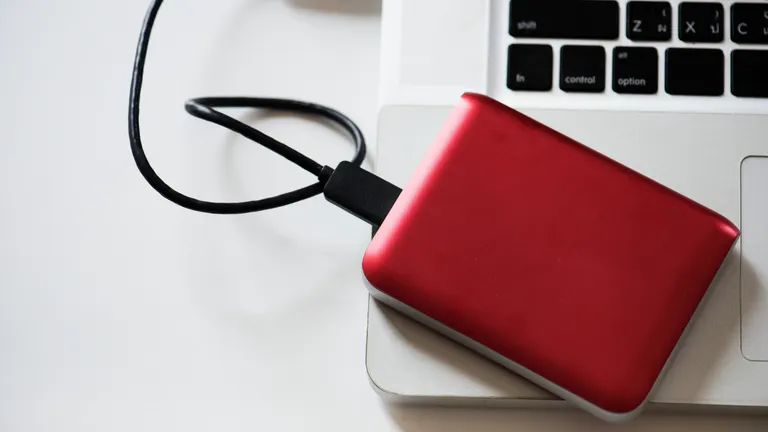
- Move old photos and videos to an external drive or cloud storage.
- Use the built-in tools: Storage Sense on Windows, or Storage settings on a Mac.
5. Tame your browser
For many people, the browser is the computer. Each open tab uses memory, and some extensions run constantly in the background.
- Close tabs you're not using, or bookmark them for later.
- Remove extensions you don't recognise or rarely use.
- Make sure the browser itself is up to date.
6. Install updates
System updates often include performance and security fixes. Check Windows Update or Software Update on a Mac, and update your graphics drivers on Windows if you use demanding apps.
7. Check for malware
Unexpected pop-ups, a new browser home page or constant high activity can be signs of unwanted software. On Windows, run a full scan with the built-in Windows Security. On any system, remove apps you don't remember installing.
8. Consider a cheap hardware upgrade
If the laptop still feels slow after all this, two upgrades can transform an older machine — if your model allows them:
- Switch to an SSD. If your laptop still uses a traditional spinning hard drive, replacing it with a solid-state drive is usually the single biggest speed improvement you can make.
- Add memory (RAM). If you regularly use most of your memory with your normal apps open, more RAM helps. Check first whether your model's memory can be upgraded — in many thin laptops it can't.
When it really is time to replace it
Replacement makes sense when the laptop no longer receives security updates, the battery or hardware is failing, or it simply can't run the software you need even after cleanup.
The bottom line
Restart, trim startup apps, free up space and control your browser. Those four steps solve most slow-laptop complaints — and cost nothing.

Comments & ratings
No comments yet. Be the first to share your view.