

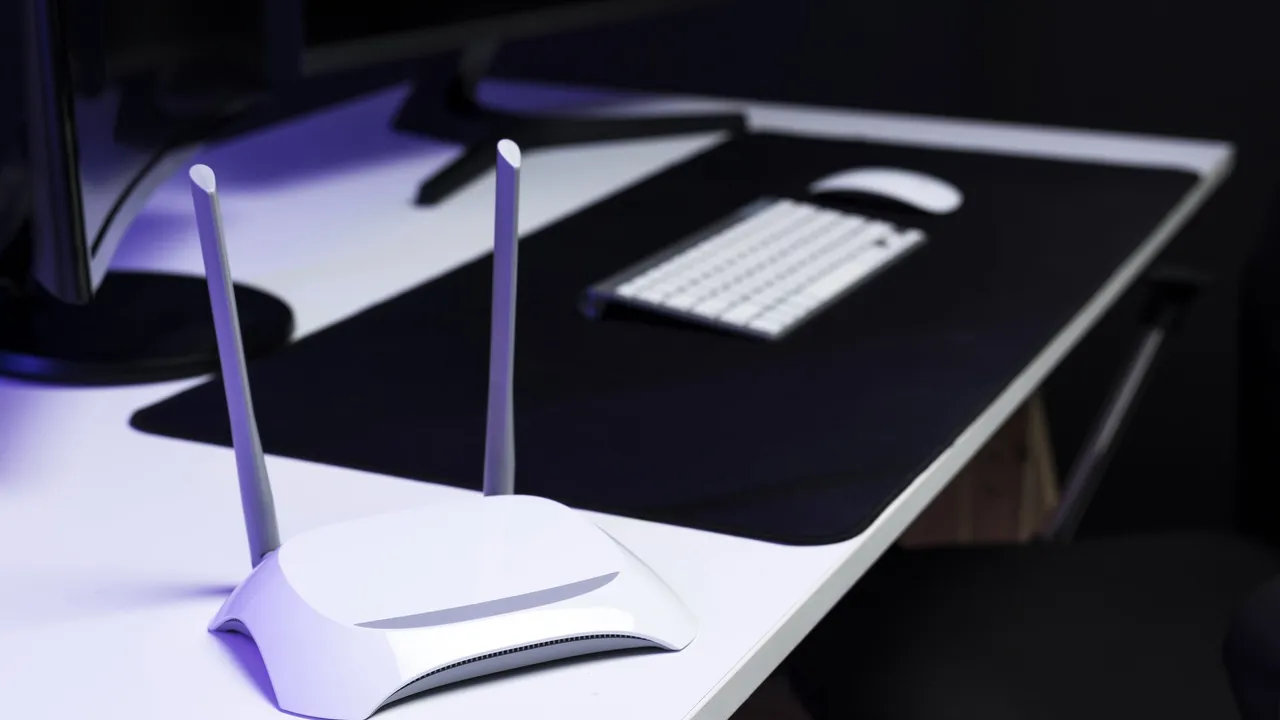
You pay for fast internet, but the bedroom has one bar of Wi-Fi and video calls freeze in the kitchen. Before upgrading your plan or buying new equipment, check where your router is. Placement alone can make a big difference.
Why placement matters
Wi-Fi is a radio signal that spreads out from the router and weakens as it travels. Walls, floors, metal and water all absorb or block part of it. Put the router in the wrong corner and much of your home ends up at the weak edge of its range.
The best spot for your router
- Central. Place it as close to the middle of your home as you can, so the signal reaches all rooms evenly.
- High. Put it on a shelf or mount it on a wall rather than on the floor. Signals spread better from above furniture.
- In the open. Don't hide it inside a cabinet, behind the TV or in a drawer.
- Antennas, if it has them: angle some vertically and some horizontally to cover more directions.
Often the router ends up wherever the internet line enters the home — near a front door or in a corner. A longer network cable from that point to a more central spot can be the cheapest fix of all.
What blocks Wi-Fi
- Thick walls and concrete, common in many homes in the region.
- Metal: fridges, filing cabinets, mirrors with metal backing.
- Water: fish tanks and even large plants.
- Other electronics: microwaves and some cordless phones can interfere, especially on the 2.4 GHz band.
2.4 GHz vs 5 GHz
Most modern routers broadcast on two bands, sometimes three:
- 2.4 GHz travels further and passes through walls better, but is slower and more crowded.
- 5 GHz (and 6 GHz on the newest routers) is much faster but has shorter range.
If your router shows them as separate networks, connect devices near the router to the faster band, and devices far away to 2.4 GHz.
Quick fixes to try first
- Restart the router. It clears temporary problems.
- Update its firmware from the router's settings page or app.
- Change the channel. In busy apartment buildings, many routers fight over the same channel. Many routers can pick the least crowded channel automatically.
- Use a cable for devices that don't move, such as a desktop computer, TV or games console. It frees up Wi-Fi for everything else.
When placement isn't enough
In larger homes, multi-storey houses or buildings with thick walls, one router may never cover everything. Options:
- Mesh Wi-Fi system: several units work together as one network and pass your devices between them as you move. This is usually the best solution for whole-home coverage.
- Wi-Fi extender: cheaper, but can reduce speed and sometimes creates a separate network name.
- Powerline adapters: send the connection through your home's electrical wiring to a second access point.
The bottom line
Central, high and in the open. Move your router there first, restart it, and test the weak rooms again. You may not need to buy anything at all.

Comments & ratings
No comments yet. Be the first to share your view.